


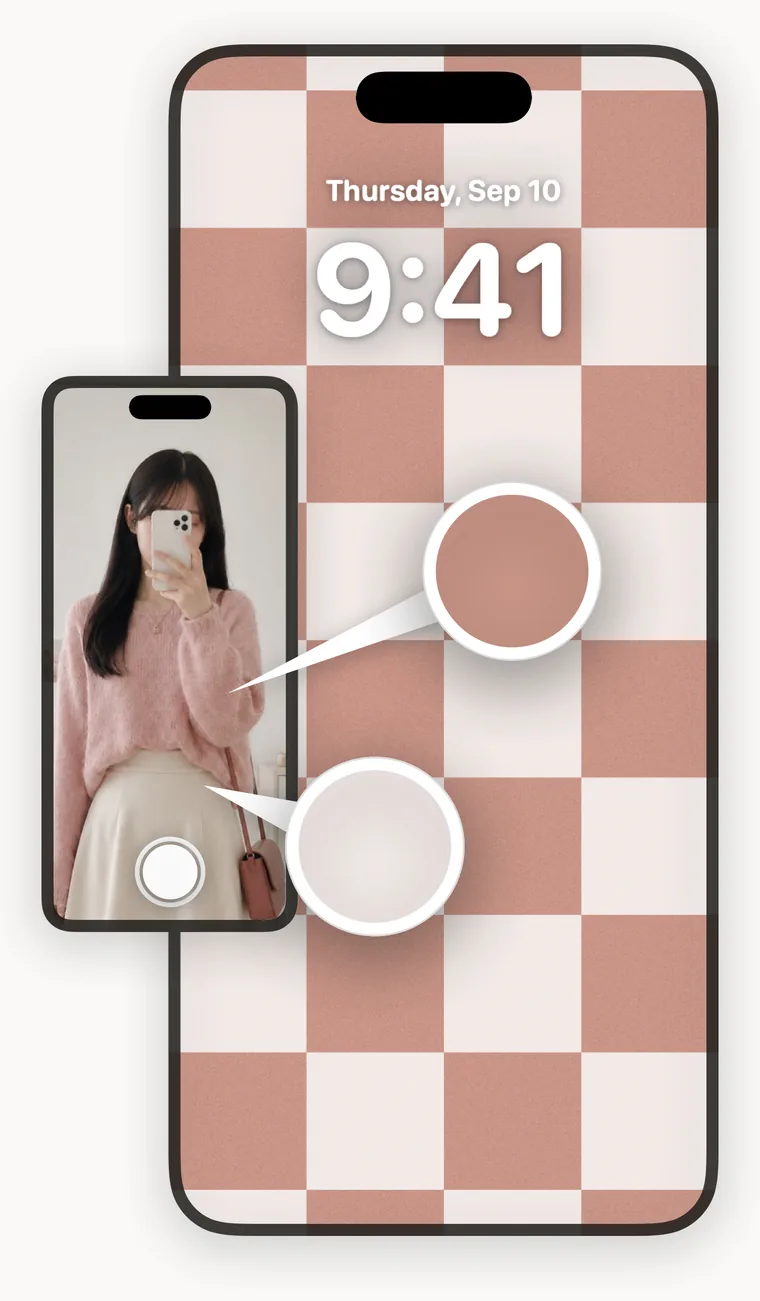
Four easy steps
Making a wallpaper takes almost no time.
- Take a photo — with the camera, or pick one from your library
- Check the colors it found
- Generate the wallpaper
- Set it as your iPhone wallpaper with the shortcut
Photograph your outfit and the wallpaper is ready moments later.
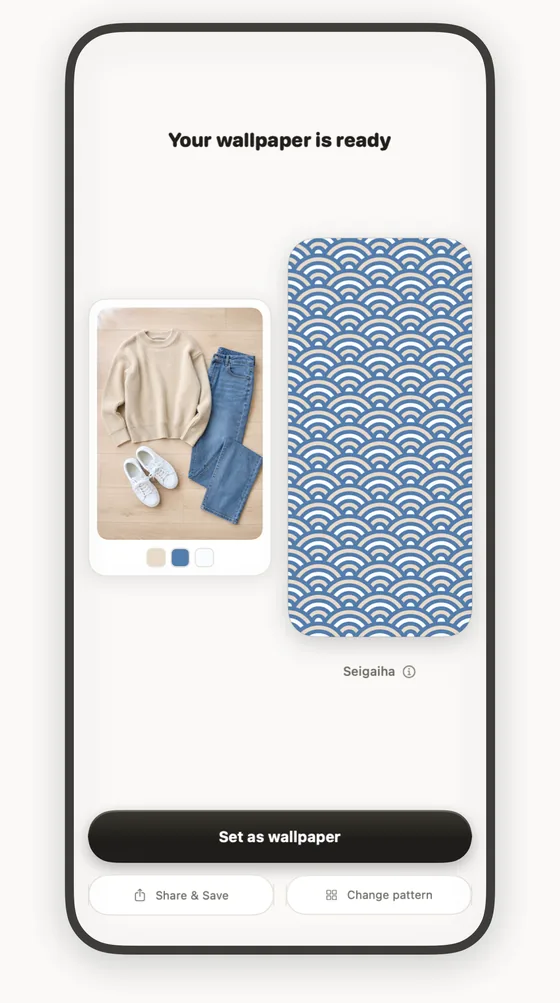
How it finds the colors you're wearing
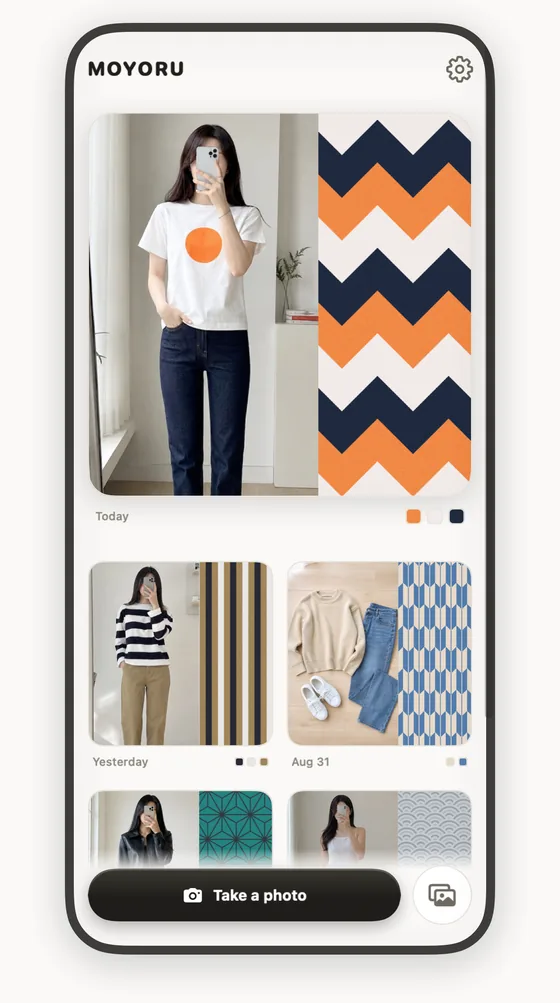
MOYORU picks the subject out of your photo, looks for the clothing inside it, and narrows the result down to 2–5 colors. The color covering the largest area becomes the main color, and the wallpaper is built around it.
Change the main color, keep only the colors you want, adjust brightness and vividness — the fine control is a tap or two away. There is an eyedropper too, for taking a color straight off the photo.
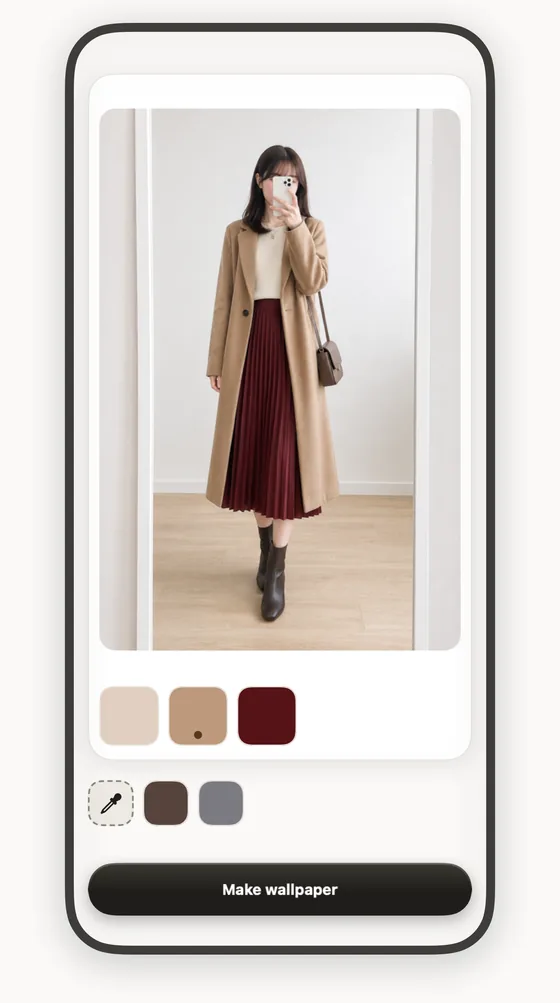
100 patterns, and the combinations never run out
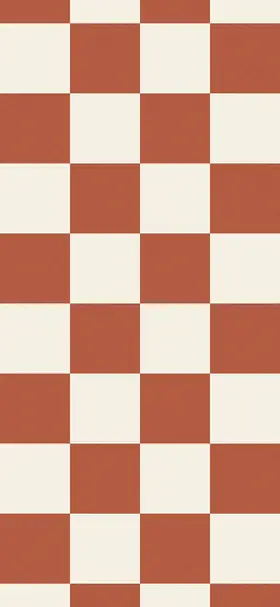
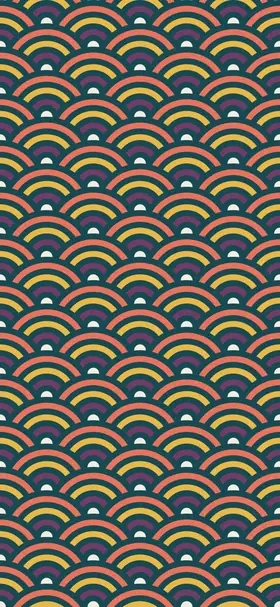
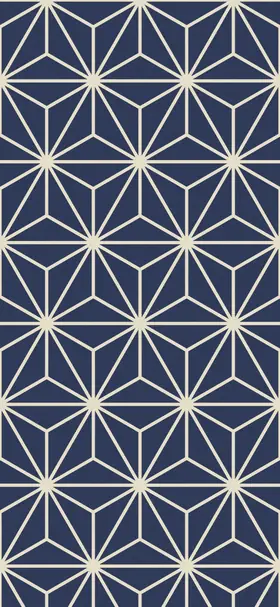
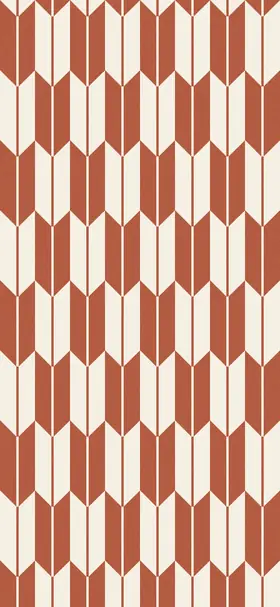
Japanese patterns you would know from a kimono — Ichimatsu, Asanoha, Uroko, Seigaiha — alongside checks, stripes, patterns from around the world, and art styles. Each one carries a short note on where it came from.
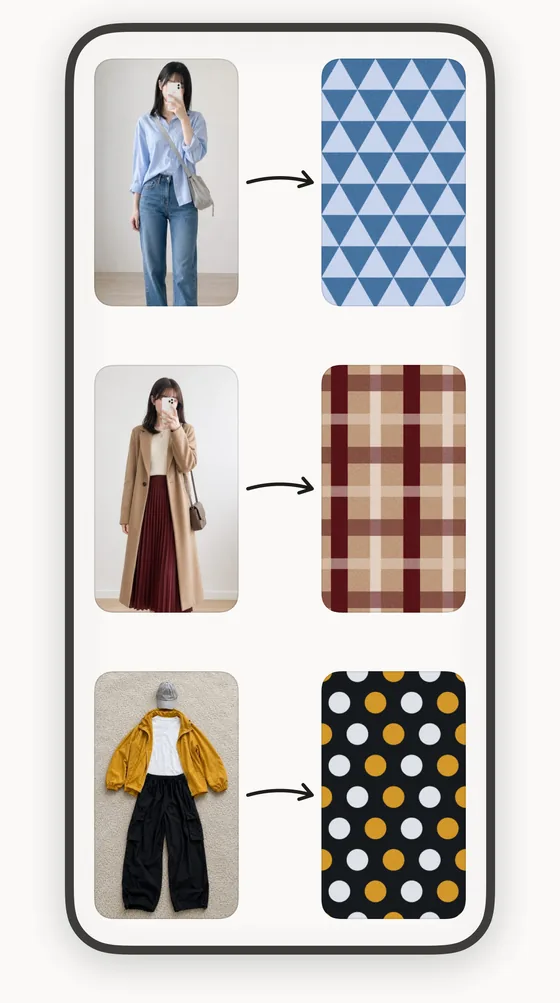
Add the colors you happen to be wearing today, and the result belongs to you alone. Outfits combine endlessly. So do wallpapers.
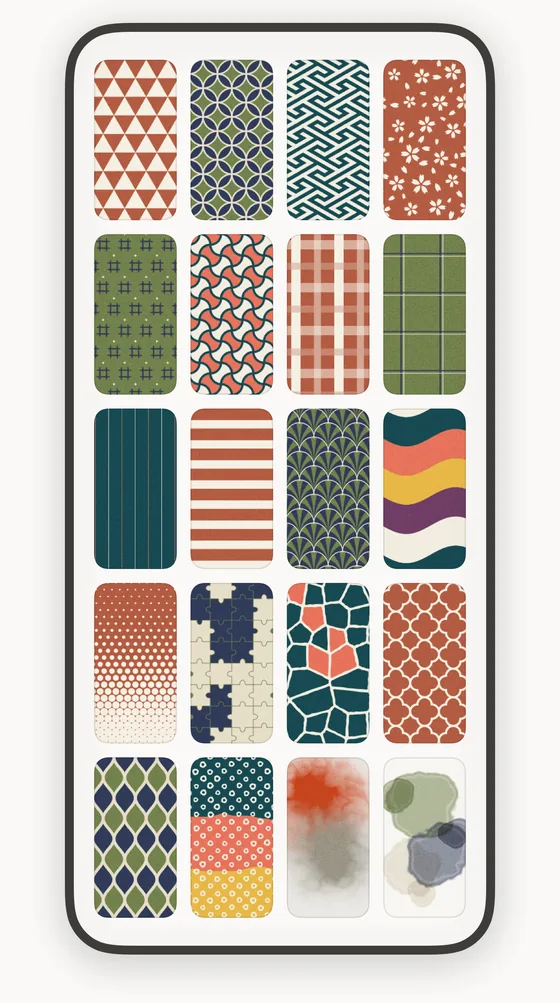
Pattern Dictionary — all 100, as wallpapers
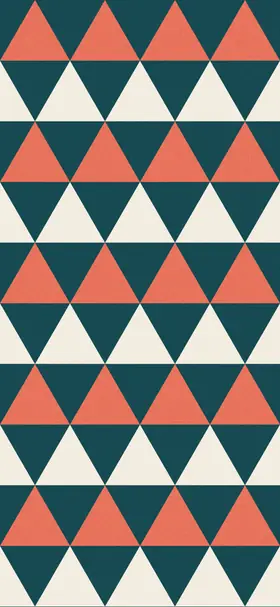
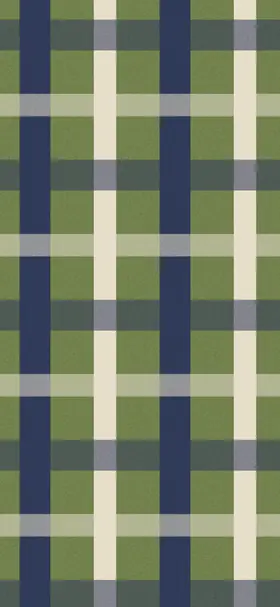
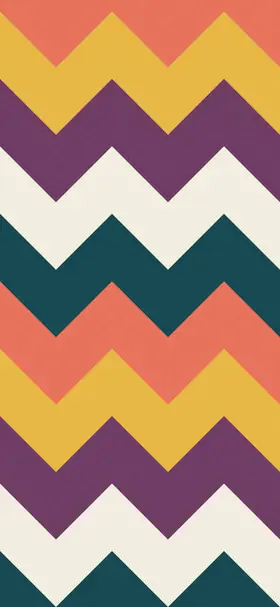
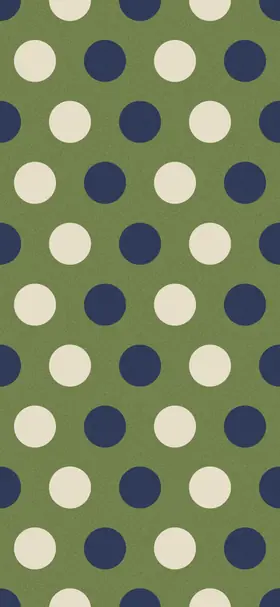
From ichimatsu and seigaiha to tartan and chevron. Each with its name, where it comes from, and sample colorways. Any of them can become your lock screen or home screen wallpaper, in the colors you are wearing.
Look back at outfits and wallpapers together
Open the app and your days line up — the clothes you photographed beside the wallpaper they became, always as a pair.
What you wore last Tuesday, and what you made of it, are both still there. You never set out to keep a journal, but making one every morning builds a record of what you wear.
Show a friend
Export your outfit and the wallpaper side by side in one image, or just the wallpaper on its own. Share today's match.
Your photos stay on your iPhone
The photos you take and the photos you import are never sent to a server. Finding the colors and building the wallpaper both happen on your iPhone.
MOYORU never asks for permission to read your photo library. When you import, iOS's own picker hands over the one image you chose and nothing else. The only time MOYORU writes to your library is when you pick “Save Image” from the share sheet.
A shortcut is required
iOS gives apps no way to change the wallpaper directly. To use a generated image as your iPhone wallpaper, add the MOYORU shortcut to the Shortcuts app — just once, from the link inside the app. Both your Lock Screen and Home Screen are set.
Without the shortcut you can still create wallpapers, save them as photos, and share them.
Where the name comes from
Moyo wo tsukuru is Japanese for “to make a pattern.” MOYORU takes the moyo from the start of it and the ru from the end.
The name also echoes moyoru, a word used in parts of northern Japan — Aomori and Iwate — for getting dressed, for making yourself look good.
Making a pattern, and getting dressed. Here they turn out to be the same thing.